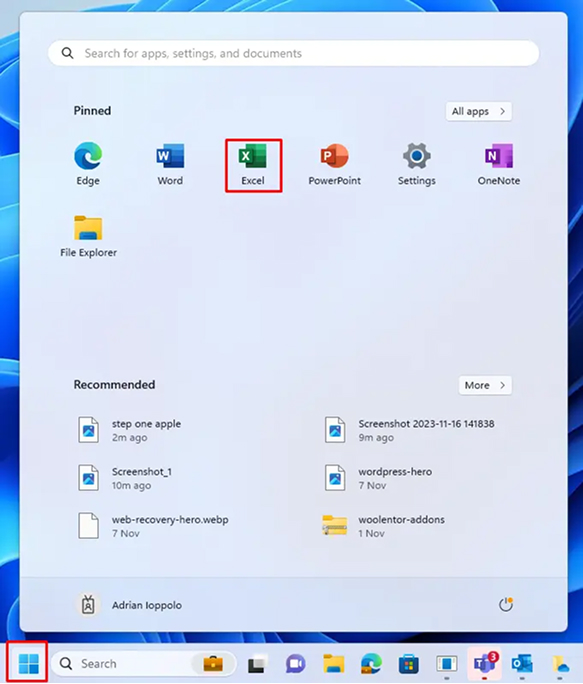
Open Microsoft Excel on your Windows computer. If you haven’t installed Excel yet, ensure you have Excel 2016 or later — KYB CAIR requires it for full macro support.
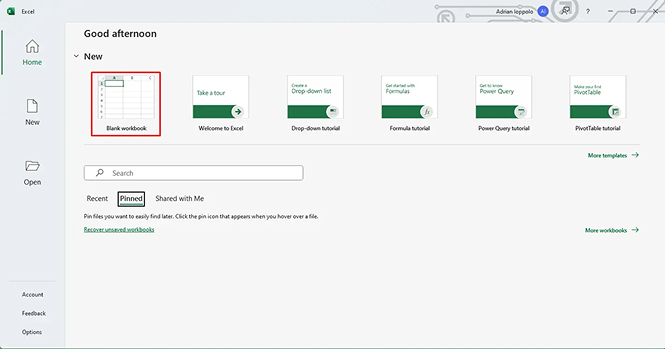
On the Excel start screen, click “Blank Workbook” to open a new spreadsheet. This gives you access to the full Excel ribbon and File menu needed in the next step.
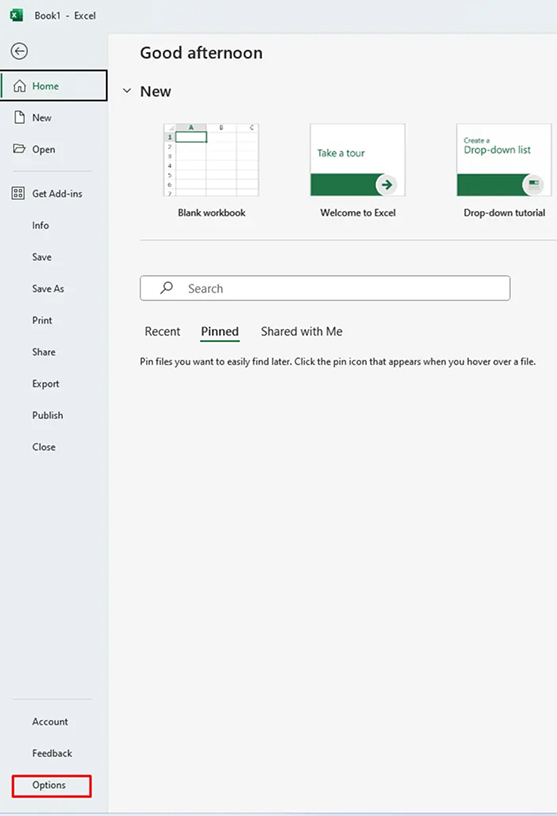
3 From the File Menu, Click Options
Click File in the top-left corner of Excel. In the left-hand panel that appears, scroll down to the bottom and click “Options“. This opens the Excel Options dialog.
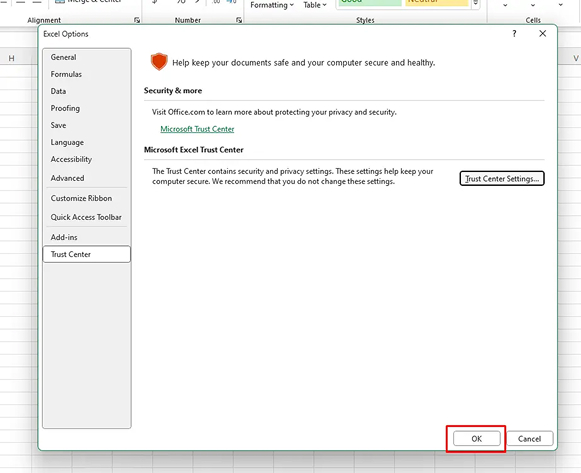
4 Open Trust Center Settings
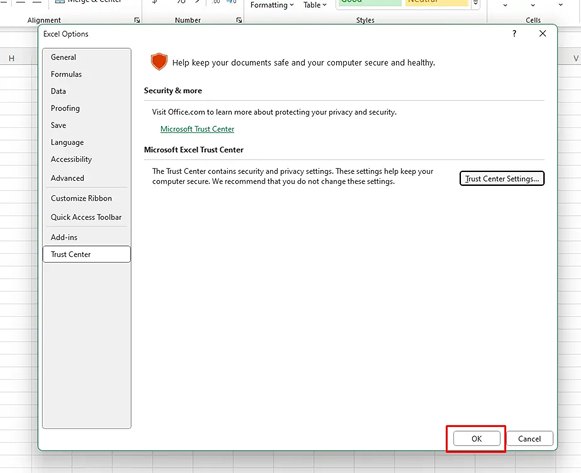
In the Excel Options dialog, click “Trust Center” in the left panel. Then click the “Trust Center Settings…” button on the right side to open the full Trust Center.
💡 Trust Center controls which files and macros Excel will allow to run — this is where your selected KYB CAIR Bookkeeping product needs to be enabled.
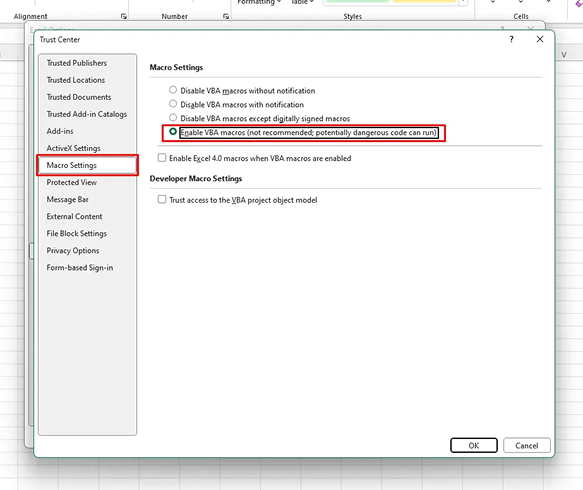
Inside Trust Center, click “Macro Settings” in the left panel. Select the radio button labelled “Enable all macros“. This allows KYB’s built-in tools to operate correctly.
💡 KYB macros are safe and locally run — they never connect to the internet or share your data.
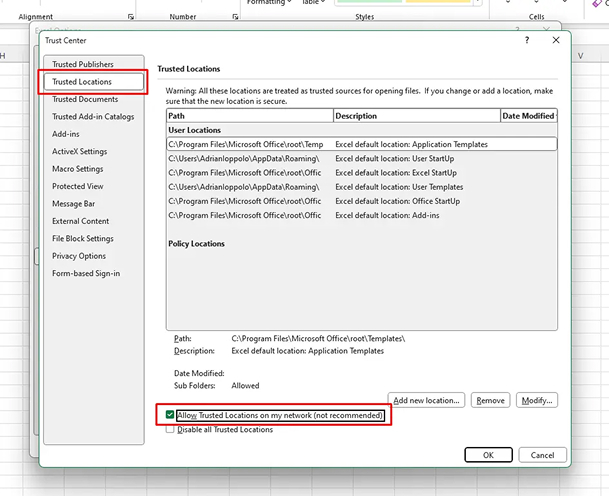
Still in Trust Center, click “Trusted Locations“. Click “Add new location…” and browse to the folder where KYB CAIR will be installed (typically your Desktop or Documents folder). Tick “Subfolders of this location are also trusted“.
7 Click OK on the First Window
Click OK on the Microsoft Office Trusted Location dialog to save your chosen folder path.
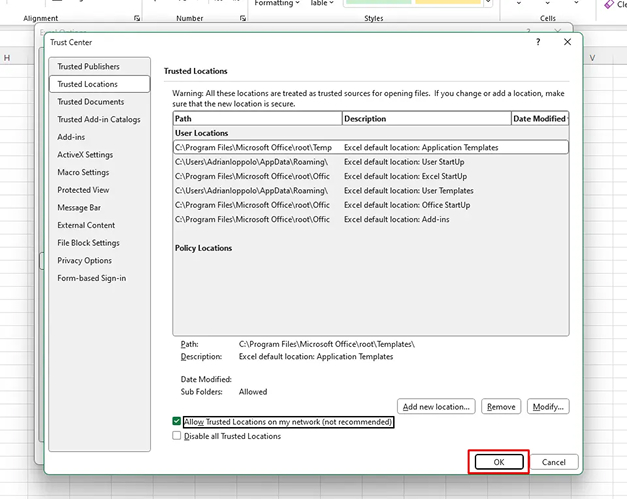
8 Click OK on the Trust Center Window
Click OK in the Trust Center window, then click OK again in Excel Options to save all settings. Excel is now fully configured.
✅ You’re ready! Download the installer below, double-click to run it, then enter the activation code from your email (check your junk folder).
Designed for Ownership, Collaboration, and Financial Control
Note: If your antivirus or firewall blocks the installer, open your antivirus software and add https://www.safeactivation.com as a trusted website, or mark the KYBSetup.exe as a trusted application. You may also temporarily disable your antivirus while installing.
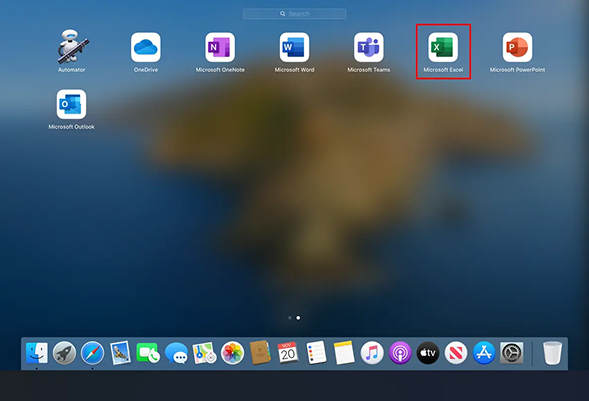
Open Microsoft Excel on your Mac. Ensure you have Excel 2016 or later installed. If needed, update via the Mac App Store or your Microsoft 365 subscription before proceeding.
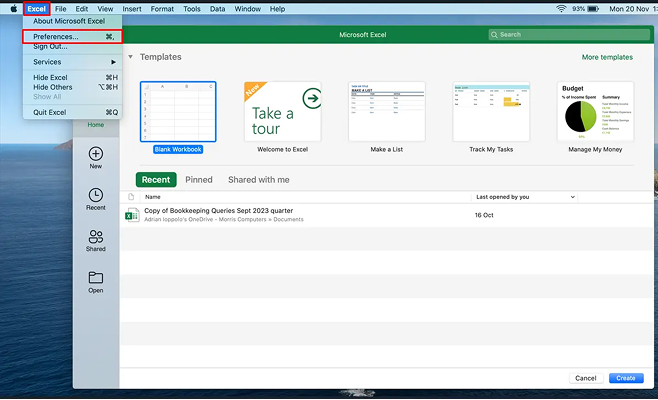
2 Select Preferences from the Excel Menu
In the top macOS menu bar, click “Excel” (next to the Apple logo), then select “Preferences…” from the dropdown. This opens Excel’s settings panel.
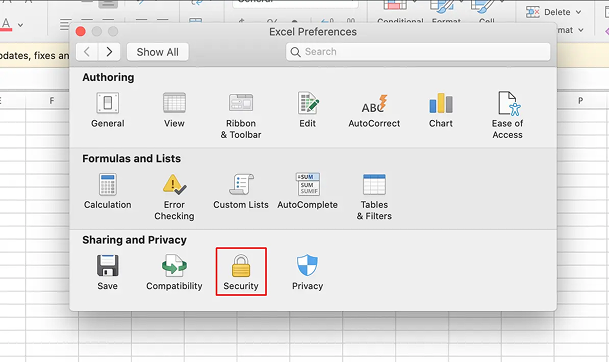
3 Click the Security Icon
In the Excel Preferences window, locate and click the “Security” icon (it looks like a padlock or shield). This section controls macro permissions for Excel on your Mac.
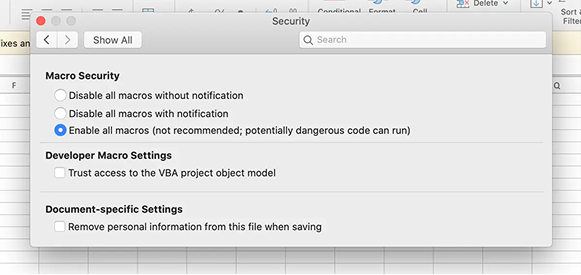
Under the Macro Security section, select “Enable all macros (not recommended; potentially dangerous code can run)” and click OK. Then quit Excel completely before downloading.
✅ Once set, this change is saved permanently — you only need to do this once.
Designed for Ownership, Collaboration, and Financial Control
Know Your Business is built to give business owners complete control of their financial data and to simplify collaboration with accountants, bookkeepers, tax authorities, and financial advisors. All roles are clearly defined, which makes for a safe and efficient financial management process.
Note: If macOS Security prevents the application from opening, go to System Settings → Privacy & Security and click “Open Anyway” next to the KYB Setup entry. Alternatively, right-click the app and select Open.