

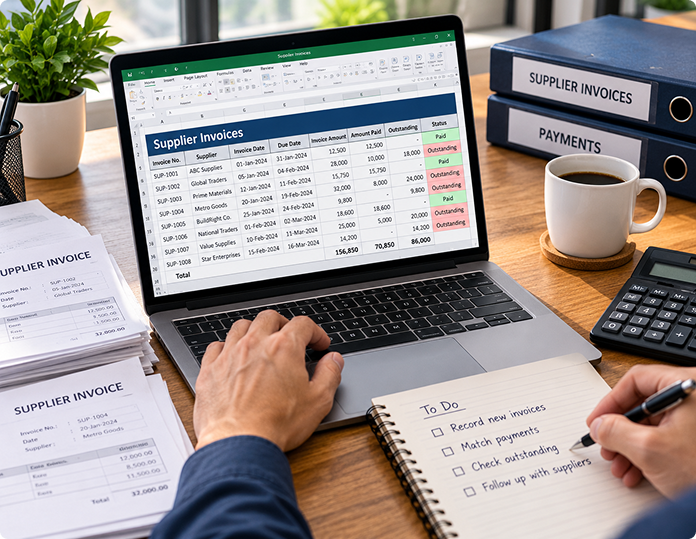
When a business buys goods or services from a supplier and pays later, there is a period when the money is still owed. If several suppliers are involved, it can become difficult to remember which invoices have been paid, which are due soon, and which payments are overdue. This is where a supplier invoice tracker in Excel can help. A simple, well-organised spreadsheet gives a business one place to record supplier invoices, monitor outstanding payments, and check what still needs to be paid.
Let’s look at how to set up a supplier invoice tracker in Excel and use it as part of everyday bookkeeping.
What Is a Supplier Invoice Tracker?
A supplier invoice tracker is a record of invoices from suppliers and the amounts owed and paid.
Supplier invoices are one part of the wider bookkeeping process. To understand how purchases, payments, and other business activities become organised financial records, read our guide on how business transactions become records.
For example, a business could receive separate invoices for stock, packaging, office supplies, repairs and delivery services. Each invoice creates a record which is to be preserved until the amount is paid or otherwise settled. A supplier invoice tracker answers practical questions such as:
- Which supplier invoices have we received?
- What is the amount of business owed by each supplier?
- What are the due dates for each invoice?
- Which invoices have been paid in full?
- Are any payments overdue?
- Is there a remaining balance on a partly paid invoice?
These are everyday bookkeeping questions. Keeping the answers in one place makes it easier to follow what the business owes.
Why Track Supplier Invoices in Excel?
When a business buys goods or services and agrees to pay later, it creates an amount that the business owes to its supplier. That amount needs to be recorded, together with every detail of the purchase and any payment made against it.
The spreadsheet is only useful, however, if the information is kept up to date. If a payment is made but not recorded, the tracker will still show the old balance. The record needs to reflect what has actually happened in the business.
Tracking supplier invoices is one part of monitoring a business’s overall financial activity. For a broader approach to organising money coming into and going out of a business, see our guide on how to track business income and expenses.
Step 1: Get Started with Setting Up Your Supplier Invoice Tracker in Excel
It is suggested that you start with a new Excel workbook and then create a worksheet called Supplier Invoice Tracker.
Before entering any figures, decide what information you need to record for each invoice. A simple layout is enough to begin with.
Each row represents one supplier invoice. If the same supplier sends five invoices, enter five separate records. This allows you to follow each invoice from the time it is received until the amount owed has been paid.
Step 2: Record Each Supplier Invoice
When an invoice lands, make sure you record its details rather than just relying on the paper invoice or email to remind you later.
A business, for example, buys packaging materials from ABC Packaging. The supplier issues an invoice for $750 on 1 October, with payment due on 31 October.
The record would simply look like this:
| Supplier |
Invoice Number |
Invoice Date |
Due Date |
Invoice Amount |
|---|---|---|---|---|
| ABC Packaging | INV-104 | 1 Oct | 31 Oct | $750 |
The invoice informs you about what the supplier has charged the business. The due date tells you when payment is expected.
The timing of recording an expense and the payment made against it can depend on the accounting method a business uses. Our guide to cash accounting vs accrual accounting explains how these two methods differ and why the distinction matters when maintaining financial records.
These are two different pieces of information, and both belong in the record. It is also good practice to check the invoice against the goods or services received and any relevant purchase order before accepting the amount as correct.
The aim is to record what happened in the business, not simply to build a list of invoices.
Step 3: Calculate the Outstanding Balance in Excel
And booking the invoice is only the first step. The remaining balance must be changed after a payment is made.
Invoice amount in column E, amount paid in column F. In cell G2, enter the formula: =E2-G2
If the invoice is $750 and the business has paid $300, then the balance outstanding will be $450. Now, copy the formula down column G so that Excel calculates the balance for each invoice.
Step 4: Record the Payment Status
The outstanding balance shows the amount remaining, but it does not clarify the current position of the invoice. A payment status makes that easier to understand.
You can use the following descriptions:
- Outstanding: No payment has been made, and the invoice remains unpaid.
- Part Paid: A payment has been made, but some of the amount is still owed.
- Paid: The invoice has been settled in full.
- Overdue: The due date has passed, and an amount remains unpaid.
- On Hold: The invoice is to be checked, approved, or resolved before making payment.
These explanations should reveal the actual position of each invoice. For example, an invoice that is partly paid and overdue should not disappear from view simply because a payment has been made.
You can enter the status manually when starting out. If you prefer Excel to calculate it, enter this formula in H2:
=IF(G2<=0,“Paid”,IF(D2<TODAY(),“Overdue”,IF(F2>0, “Part Paid”,”Outstanding”)))
This formula checks the outstanding balance first, then the due date, and finally whether any payment has been made. It assumes that column F contains the total amount paid and that column G contains the outstanding balance.
An invoice that is on hold may still need to be marked separately, because a formula cannot know why the invoice is being held. The record should help you understand what needs attention, rather than simply assign a label.
Step 5: Make It Easy to Spot Invoices That Need Attention
When a business has several supplier invoices, it is easy to lose track of which payments are coming up and which have been missed. In Excel, a simple way to handle this is to focus on invoices that are unsettled, or that still need to be paid.
For example, you might want to highlight an invoice when the due date has passed and there is a balance outstanding. This makes verifying records easier.
For this, highlight the necessary cells in Excel, and then navigate to Home > Conditional Formatting > New Rule. Select to use a formula and type:
AND($D20)
Here, column D is the due date and column G is the outstanding balance. The formula verifies whether the due date has passed and there is still money owed. You can also create a separate rule to highlight invoices that are almost due.
These highlights are just a way to bring some records to your attention. Before you pay an invoice, check the original document, confirm the amount still owed, and make sure the payment is due.
Step 6: Update the Record When a Payment Is Made
It’s not just a matter of recording an invoice. When the business makes a payment to the supplier, that payment also needs to be recorded.
Let’s go back to the ABC Packaging invoice, $750. The business pays $300. The invoice record should now have $300 paid and $450 due. When you pay the outstanding $450, update the record again. The balance left behind should now be zero.
This is how the invoice record follows what happens in the business. The invoice is recorded when it arrives, each payment is entered when it is made, and the balance shows what remains unpaid.
When a supplier payment is made in cash, it is important to record the transaction clearly and retain the supporting documentation. Our guide on how to record cash transactions in a business explains how businesses can maintain records of cash payments and other cash transactions.
If a supplier invoice is paid in several instalments, it may be helpful to keep a separate worksheet called Payment History. Enter each payment on a new row, with the invoice number, payment date, amount, and payment reference.
The main tracker can show how much has been paid against each invoice, while the payment history shows the individual payments that make up that amount. If you need to check a payment later, you have the details to refer to.
Step 7: Keep Your Supplier Records Organised
As more invoices are added, you will want to find a particular record without searching through the entire spreadsheet.
Excel’s sorting and filtering features can help. You can turn your list into a table by selecting the data and choosing Home > Format as Table or Insert > Table, depending on your version of Excel.
Once the table is set up, you can filter the records to see invoices from a particular supplier, payments due soon, invoices that are overdue, or amounts that are still outstanding. You can also sort by due date to see which payments need attention first.
The purpose is simple: when you look at the records, you should be able to understand what the business owes, which invoices have been paid, and what still needs to be done.
Keep the original invoices and payment confirmations with your records as well. The spreadsheet helps you organise the information, while the supporting documents show where that information came from.
For example, you can display:
- Invoices from one supplier
- Invoices due this week
- Overdue invoices
- Invoices with a remaining balance
- Invoices that have been paid in full
Sorting by due date can help bring upcoming payments to the top of the list.
The value of keeping these records organised is not just that the spreadsheet looks tidy. It means you can find the details behind an amount owed and understand how the balance has been calculated.
As with any bookkeeping record, the entries should be supported by the original invoices and payment information. The spreadsheet helps organise the information; it does not replace the documents that explain the transactions.
Step 8: Review Outstanding Payments Regularly
A supplier invoice tracker isn’t something that is only updated when someone asks how much the business owes. It should be reviewed regularly. For many small businesses, a weekly review will be a good starting point, but businesses with frequent transactions may need to review their records more often. On review, you must check:
- All newly received invoices have been input.
- Recording of payments made.
- Whether any invoices are becoming due soon.
- Whether any payment is missed.
- Whether any invoices are duplicated, disputed, or awaiting approval.
It is also useful to compare the tracker with supplier statements when they are available. If the supplier’s statement shows an amount that does not agree with your records, investigate the difference rather than assuming one record is correct.
Final Thoughts
Keeping a spreadsheet is not the only way to track supplier invoices. It is about knowing what the business has bought, what it owes, what it has paid, and what needs attention. An Excel supplier invoice tracker can simplify this if it is set up clearly and updated consistently.
For business owners managing their own financial records, understanding the wider responsibilities of bookkeeping is also important. Read our guide on whether a business owner can do their own bookkeeping to learn more about managing bookkeeping tasks in a business.